
WiFi 3 min readJune 6, 2026
Nintendo Switch Not Connecting to WiFi? Try These Fixes Right Now
Few things are more frustrating than sitting down for a gaming session only to find your Nintendo Switch refuses to connect to WiFi. Don't panic — this is one o…
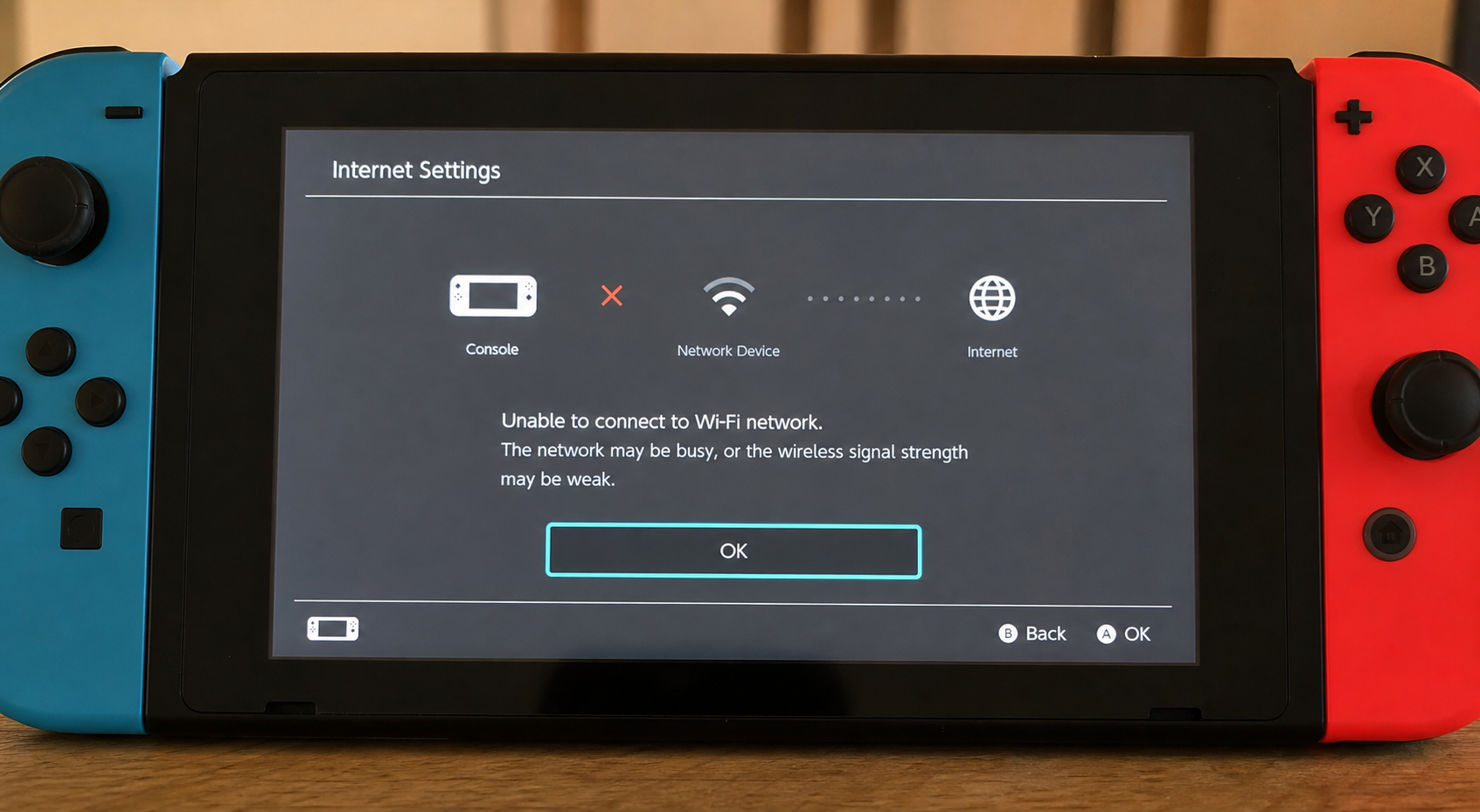
Few things are more frustrating than sitting down for a gaming session only to find your Nintendo Switch refuses to connect to WiFi. Don't panic — this is one of the most common Switch problems out there, and in most cases it's completely fixable without any technical know-how.
Let's walk through the fixes that actually work, starting with the simplest ones.
1. Restart your Switch first. Hold down the power button for three seconds, choose 'Power Options', then 'Restart'. It sounds too simple, but a quick restart clears out tiny glitches that block your WiFi connection.
2. Restart your router too. Unplug it from the wall, wait a full 30 seconds, then plug it back in. Give it a minute to fully reconnect before trying your Switch again. Your router needs a refresh just like any other gadget.
3. Check you're entering the right WiFi password. Go to System Settings, then Internet, then Internet Settings. Select your network and choose 'Change Settings' to re-enter your password carefully — passwords are case-sensitive, so a capital letter in the wrong place will block you every time.
4. Move closer to your router. The Switch has a fairly modest WiFi antenna. Thick walls, microwaves, and baby monitors can all interfere with the signal. Try connecting from the same room as your router to rule out a range or interference problem.
5. Forget the network and reconnect from scratch. In System Settings, go to Internet, then Internet Settings, find your network, scroll down and select 'Delete Settings'. Then reconnect as if it's a brand new network. This clears out any corrupted connection data.
6. Check your router's security settings. Some routers use older security types that the Switch doesn't love. If you can log into your router settings (usually by typing 192.168.1.1 into a browser), look for the WiFi security setting and try switching it to WPA2-PSK if it isn't already.
7. Try setting your DNS manually. This sounds technical but it's straightforward. In Internet Settings, select your network, choose 'Change Settings', then 'DNS Settings', and switch it to 'Manual'. Set the Primary DNS to 8.8.8.8 and the Secondary DNS to 8.8.4.4 (these are Google's free, reliable DNS servers). Save and test again.
8. Check Nintendo's server status. Sometimes the problem isn't your Switch or your router at all — Nintendo's online services occasionally go down for maintenance. Visit nintendo.com/en-gb/support and look for the network status page to check if there's a known outage.
9. Update your Switch software. If you can borrow someone else's hotspot to get online briefly, go to System Settings, then System, then System Update. Running outdated software can cause all sorts of connection headaches.
If you've worked through all of these and your Switch is still stubbornly offline, it could point to a hardware issue with the WiFi module inside the console — particularly if your Switch has been dropped or got damp at any point.
The good news is that most people find one of the steps above does the trick. Give each one a proper try before moving on to the next, and don't rush through them.
Still stuck? Head over to FastFix.it.com and describe exactly what's happening — we'll give you a personalised step-by-step fix tailored to your specific situation.
Got this problem right now?
Get a personalised step-by-step fix in seconds — your first one is free.
Fix it now