
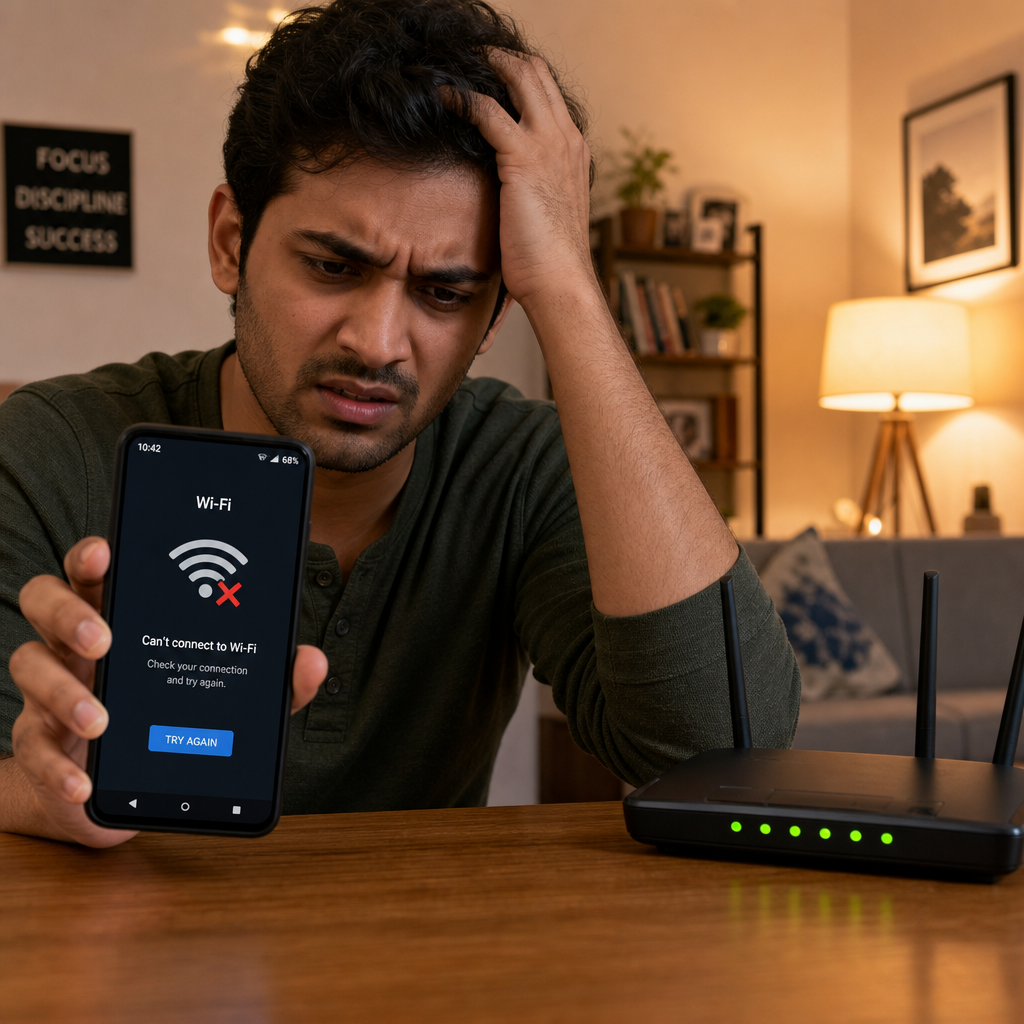
Android Won't Connect to WiFi? Here's How to Fix It
Your Android is the odd one out on your WiFi network. Don't panic — these simple fixes will get you back online in minutes.
It's one of the most frustrating tech moments: every laptop, tablet, and smart TV in the house is happily online, but your Android phone just refuses to connect to WiFi. The good news? Because everything else is working fine, the problem almost certainly lies with your phone's settings — and that means it's very fixable. Work through these steps one by one and you'll almost certainly crack it.
Step 1: Start With the Obvious (But Important) Checks
Before diving into anything complicated, let's rule out the simple stuff:
- Toggle WiFi off and back on. Swipe down from the top of your screen, tap the WiFi icon to turn it off, wait five seconds, then tap it again to turn it back on.
- Restart your phone. Hold the power button, tap Restart, and let it boot up fully. This clears little software glitches that cause exactly this kind of problem.
- Check you're connecting to the right network. It sounds silly, but make sure you're tapping your network name and not a neighbour's with a similar name.
- Check the password. If your phone is asking for a password, try typing it into a notes app first so you can see what you're entering — a wrong character is easy to miss.
Step 2: Forget the Network and Reconnect From Scratch
Sometimes your phone holds on to old, corrupted connection details. Forgetting the network and reconnecting fresh often sorts this out immediately.
- Go to Settings on your phone.
- Tap Wi-Fi (or Connections then Wi-Fi on Samsung phones).
- Find your network name in the list and tap it, or tap the small cog/gear icon next to it.
- Tap Forget (or Forget Network).
- Now tap your network name again from the list, enter your WiFi password carefully, and tap Connect.
If it connects — brilliant, you're done! If not, keep going.
Step 3: Reset Your Network Settings
This is a slightly bigger step, but don't worry — it only resets WiFi, Bluetooth, and mobile data settings. It won't delete your photos, apps, or anything else personal.
- Open Settings.
- Tap General Management (Samsung) or System (most other Android phones).
- Tap Reset.
- Choose Reset Network Settings (sometimes called Reset Wi-Fi, Mobile & Bluetooth).
- Confirm the reset and let your phone restart.
After this, go back to your WiFi settings, find your network, enter the password, and try connecting again. This fixes a surprising number of stubborn WiFi problems.
Step 4: Check for an IP Address Conflict
Every device on your WiFi gets a unique IP address — think of it like a seat number at a dinner table. Occasionally two devices accidentally get the same number and the phone loses its seat. Here's a quick fix:
- Go to Settings > Wi-Fi.
- Tap the gear/cog icon next to your network name.
- Tap IP Settings and change it from DHCP to Static.
- In the IP Address field, change the last number to something between 200 and 250 (for example, if it shows 192.168.1.5, try 192.168.1.220). Leave everything else as it is.
- Tap Save and try connecting.
If this works, great. If it causes more trouble, just go back and switch IP Settings back to DHCP.
Step 5: Check for a Software Update
A bug in your phone's software can sometimes break WiFi. Manufacturers regularly release updates that quietly fix these kinds of issues.
- Go to Settings > Software Update (or System > System Update).
- Tap Check for Updates.
- If an update is available, download and install it, then try your WiFi again.
Also worth checking: make sure your router's firmware is up to date. Usually you can do this by logging into your router through a browser on another device and looking for an update option — check your router's manual for the exact steps.
The Bottom Line
When your Android phone won't connect to WiFi but everything else can, the problem is almost always something fixable in your phone's settings — not a broken phone or a broken router. Start by forgetting and rejoining the network, move on to a network settings reset if needed, and check for software updates. Most people find one of these steps solves it. If you've tried everything above and you're still stuck, get a personalised fix on FastFix and we'll walk you through exactly what to do for your specific phone and setup.
Got this problem right now?
Get a personalised step-by-step fix in seconds — your first one is free.
Fix it nowComments
No comments yet — be the first!
Leave a comment
All comments are moderated before appearing.